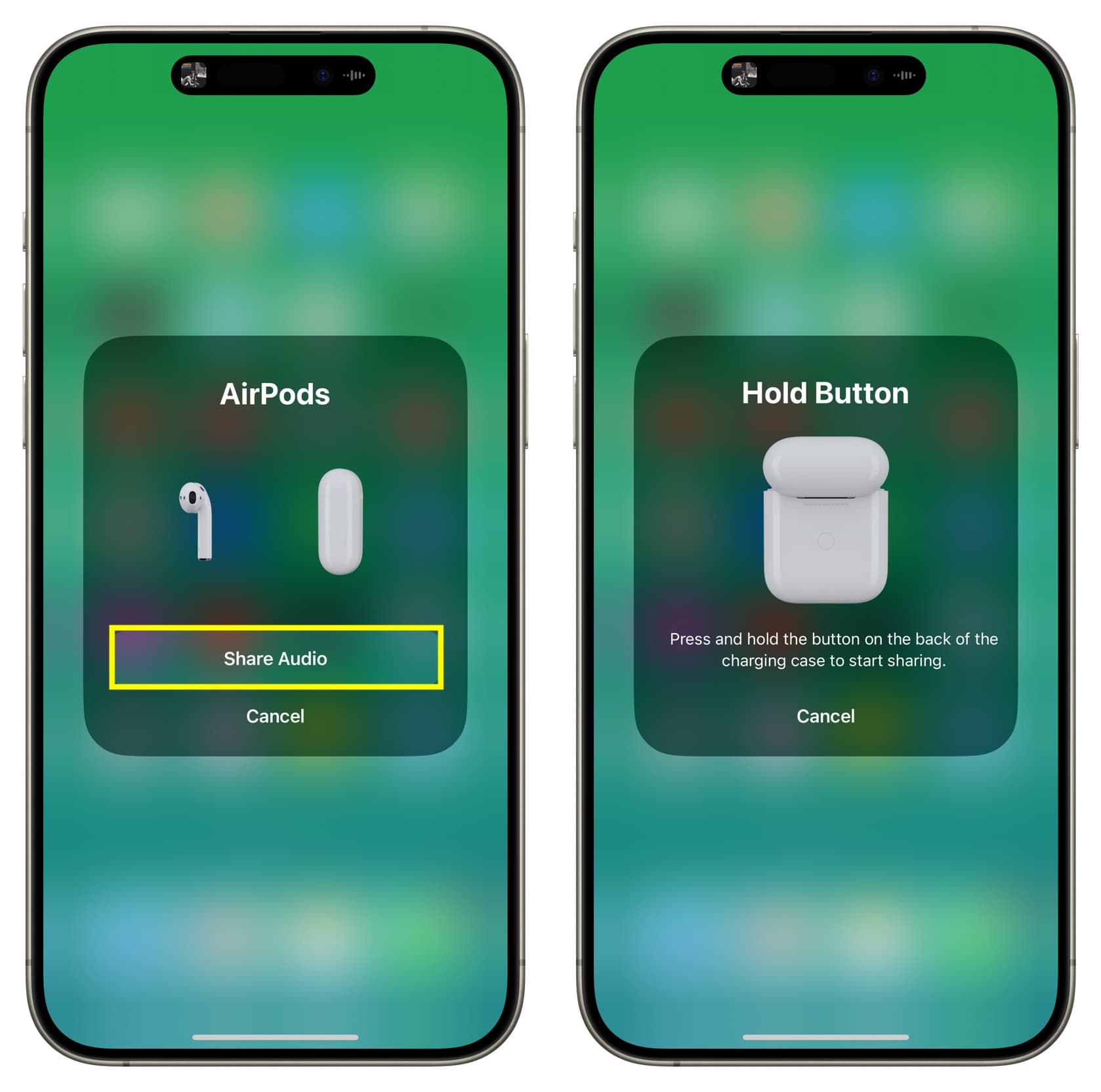
AirPods have transformed how friends and families enjoy media together. If you’re planning a movie night or a road trip playlist, you might want to know how to share audio on airpods in a simple, reliable way. This guide covers the steps, compatible devices, and common issues so you can keep the sound synced without crowding around one pair of earbuds.
What you need
To start, make sure you have a compatible iPhone or iPad running the latest iOS or iPadOS. Each listener should have their own AirPods or AirPods Pro. For best results, use AirPods that support Audio Sharing, which is available on recent models. A stable Bluetooth connection and a full charge on both devices help prevent dropouts during playback.
Step-by-step: sharing audio on AirPods
Step 1: Connect the primary AirPods to your device. Open the case near your iPhone or iPad and follow the on-screen prompts to pair. Step 2: Start playback from your preferred app. Step 3: Open Control Center and tap the AirPlay icon (the triangle with concentric circles) to view available audio devices. Step 4: Tap Share Audio. Step 5: Have the second pair of AirPods nearby and hold them near the iPhone or iPad to trigger the pairing prompt. Step 6: Tap Share Audio on the prompt and confirm. Step 7: Use the on-screen sliders to balance volume between the two listeners. You can continue listening on the first AirPods while your friend uses theirs, with individual volume control.
Troubleshooting tips
If Share Audio doesn’t appear, try these checks: ensure both AirPods are charged, update your device to the latest software, and verify Bluetooth is enabled. Restart your iPhone or iPad, then re-pair the primary AirPods. If you’re trying to share with an older AirPods model or a non-Apple device, some features may be unavailable or work with limited support. In some cases, temporarily disconnecting and reconnecting can help re-establish the link.
Smart tips for better sound sharing
For smoother operation, keep devices close and minimize interference from other Bluetooth devices, Wi-Fi routers, or microwave ovens. Some apps support adaptive volume, so you might want to disable that if you notice drift between listeners. If you’re watching a video, enable subtitles or captions to sync with the audio for a better shared experience. And if you’re sharing on the go, consider enabling Do Not Disturb to avoid interruptions from incoming calls.
Why this feature matters
Audio sharing makes social listening practical, whether you’re a family at home, a couple on a commute, or a group on a long flight. It’s a small convenience that strengthens shared experiences without extra gear. For more tech tips and product ideas, visit the Write Gossip homepage.
Want to revisit the exact phrase later? You can refer to it here: how to share audio on airpods. And if you’re curious about related gear reviews and setup guides, keep exploring this site for fresh insights and practical advice.