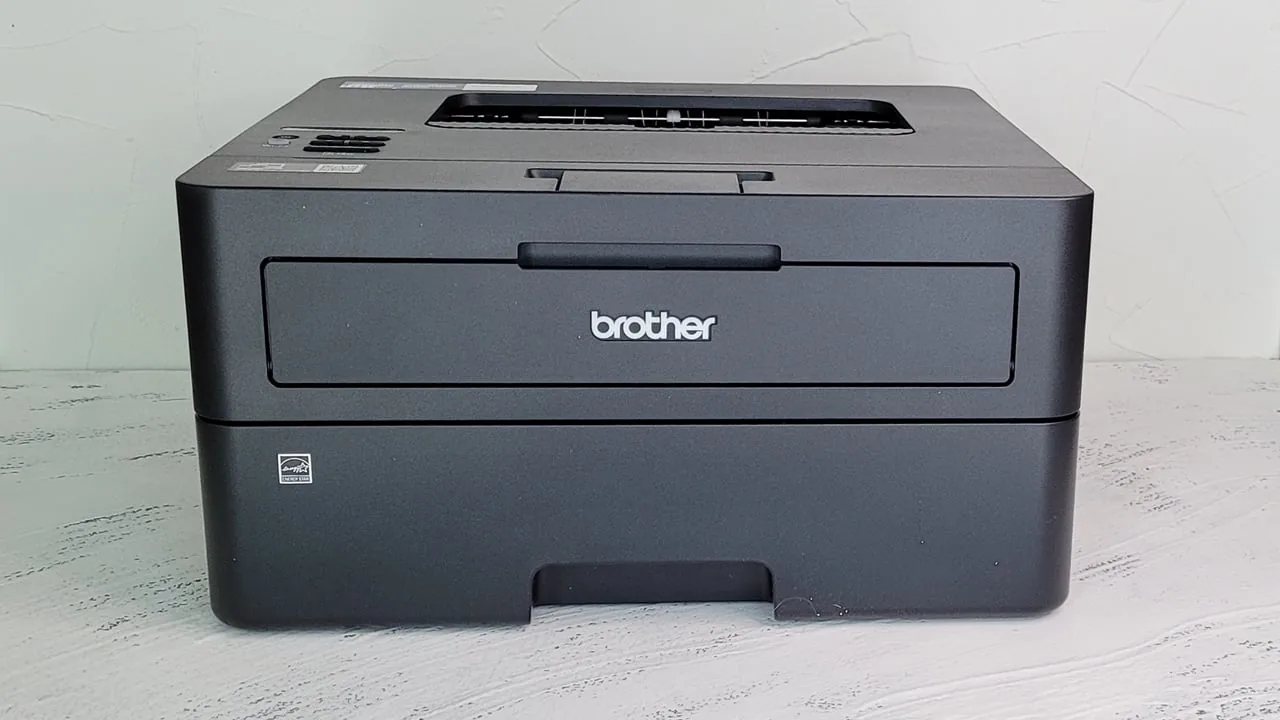
Choosing the right printer for a busy home office means balancing space, noise, cost per page, and reliability. The brother hl-l2460dw is a strong contender in this category, offering a compact footprint and features that support both solo projects and small teams. If you own a brother hl-l2460dw, you know how a quiet, efficient monochrome printer can boost productivity. In this guide, we will explore what makes the HL-L2460DW stand out, how to set it up quickly, and practical tips to keep operating costs low without sacrificing print quality.
Key features of the Brother HL-L2460DW
The design is compact enough to fit on a small desk, yet sturdy enough to handle daily use. The printer includes a respectable paper capacity with a 250‑sheet main tray and a 50‑sheet multipurpose tray, reducing the number of refills during busy weeks. Automatic duplex printing helps cut paper usage in half, which lowers ongoing costs and is friendlier to the environment. Connectivity is flexible, with built‑in wireless and USB options that let you print from laptops, desktops, and mobile devices without needing complex software installations. This balance of space, speed, and simplicity makes it a practical choice for an at‑home workspace or a compact office setup.
Performance, efficiency, and cost savings
Print quality is crisp and readable for business documents, reports, and spreadsheets, which is typical of a dependable monochrome laser printer. While not aimed at photo work, the text clarity and consistent darkness produce professional results for clients and colleagues. If speed matters, many users find the HL-L2460DW delivers solid performance for everyday tasks, with a quick warm‑up and reliable first‑page output. Running costs stay favorable thanks to efficient toner usage and the option to use high‑yield cartridges that extend intervals between replacements. The ENERGY STAR certification adds a layer of assurance that the printer won’t drain your electricity budget over time, making it a greener choice for households and small offices alike.
Setup tips and compatibility
Getting started is straightforward. After unboxing, place paper in the main tray, plug in the power, and connect the printer either via USB or through your Wi‑Fi network using the control panel’s setup wizard. Brother provides drivers and software compatible with common operating systems, including Windows and macOS, with installers that guide you through the essential steps. If you manage multiple devices, set the HL‑L2460DW as the default printer on each machine and enable automatic driver updates to keep performance steady. For mixed environments with Linux, you can typically rely on CUPS support to keep printing smooth. With a little setup, you’ll be ready to print from virtually any document type without headaches.
Tips to maximize value and stay updated
To maximize efficiency and control costs, enable duplex printing as the default in the printer settings, choose normal or draft print quality for internal documents, and consider high‑yield toner cartridges when available. Regular maintenance—such as keeping the rollers clean and updating drivers—helps prevent common issues and prolongs the life of the device. If you’re exploring more printer options or looking for fresh ideas on how to optimize a home office, you can explore additional guides and reviews at Newspaj.
For more printer guides and hands‑on tips, visit Newspaj. And if you want to dive deeper into the specific model, you can read broader reviews by following the link to brother hl-l2460dw again to revisit details and user experiences.